Gaming Time Tracking with Toggl and Playnite
I've been using Toggl to track my time for the last few months, and have tried to automate it as much as I can. I feed this time tracking into Exist.io which produces insights and correlations for me.
To track PC gaming time, you can use Toggl's shortcut mode alongside Playnite's scripting option. Make sure you create Toggl tags for each Platform you are using - I actually edited my Playnite library to classify things as either 'Xbox Gamepass' or 'PC' to streamline reporting. You can do this in the Library Manager, then bulk edit each game's platform to match your desired setup.
How To Guide
Start by creating a desktop shortcut of the Project you want to log time with in Playnite. I have a project called 'Gaming' so I will right click on an entry in that project and click 'Create Desktop Shortcut'.
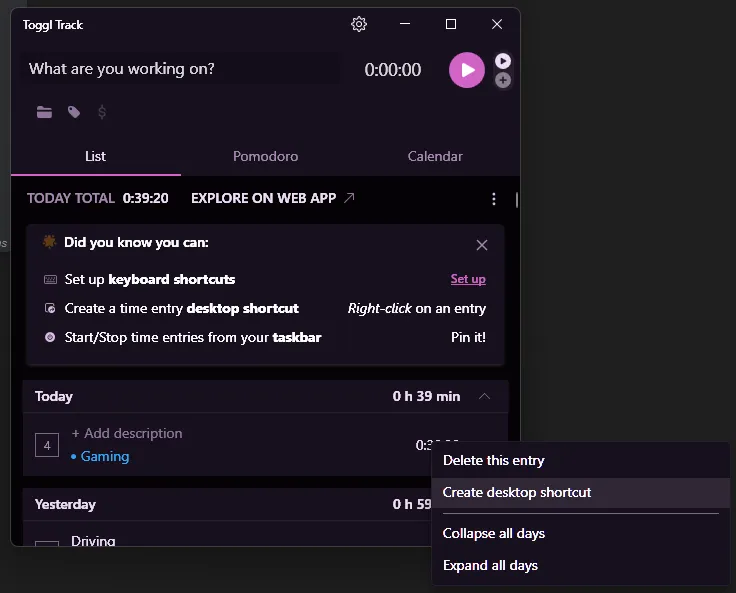
Find the shortcut that was created on your desktop, and copy the entire Target field to your clipboard.
C:\Users\{user}\AppData\Local\TogglTrack\TogglTrack.exe start -b False -d "{Name}" -p Gaming -t "{Platform}"
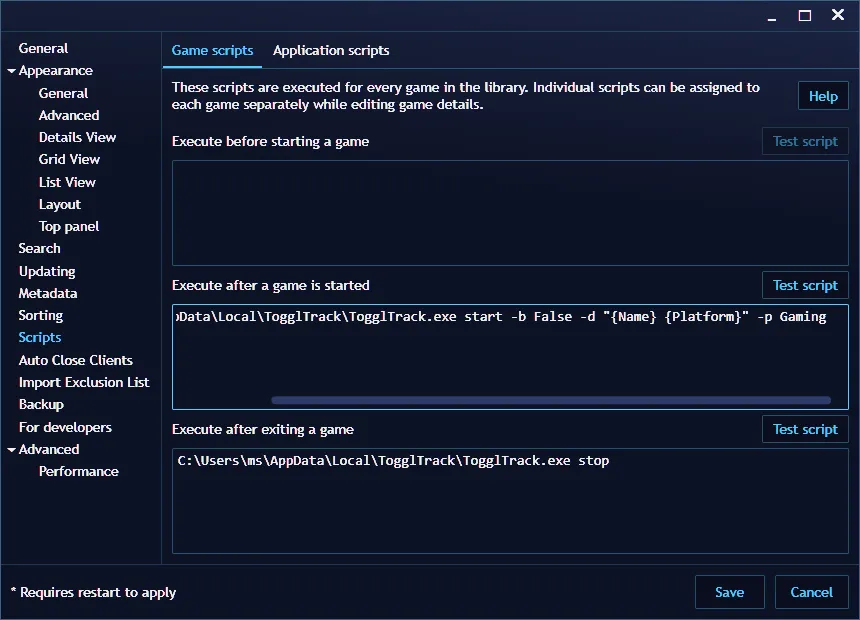
Open Playnite, go to Settings > Scripts. Paste the 'Target' path you copied to your clipboard into 'Execute after a game is started'. You can also use Playnite variables such as {Name} and {Platform} to add context to the time tracking data.
To stop tracking when you close a game, update the following snippet with the location of your toggl.exe file and paste into 'Execute after Exiting a Game'
[Path to your Toggl.exe File] stop
From now on, when you launch a game via Playnite it will invoke Toggl to track time against the desired project.